🤖 Automate Your Morning Routine with n8n: Weather + Quote + Telegram Bot
Learn how to automate your morning routine using n8n. In this step-by-step tutorial, you’ll create a workflow that runs every morning at 9 AM, fetches your local weather and a motivational quote, and sends it to you via Telegram, all without writing a single line of code.


Imagine waking up every morning to a personalized Telegram message - the weather for your city and an inspiring quote to kick off your day.
No manual checking, no apps to open - just pure automation.
In this tutorial, I’ll show you how to create this exact workflow using n8n, a powerful open-source automation tool you can host yourself.
click here to see how to deploy it locally with 0$
We’ll go step by step — from setting up the schedule to connecting APIs and sending your message through Telegram.
Why Build This Flow?
This simple project is the perfect first step to understanding how n8n works.
You’ll learn how to:
- Use a Schedule trigger
- Connect to an external API like OpenWeatherMap
- Fetch data from another API (inspirational quotes)
- Send messages automatically via Telegram Bot API
By the end, you’ll have your first working automation - and a daily reminder of how powerful n8n can be.
Step 1 : Create the Scheduled Trigger
- In n8n, add a "On a schedule" node as a trigger node.
- Set it to run every day at 9:00 AM.
This will be the starting point of your automation.
Step 2 : Get the Weather Data
- Go to OpenWeatherMap.org and create a free account.
- Generate your API key.
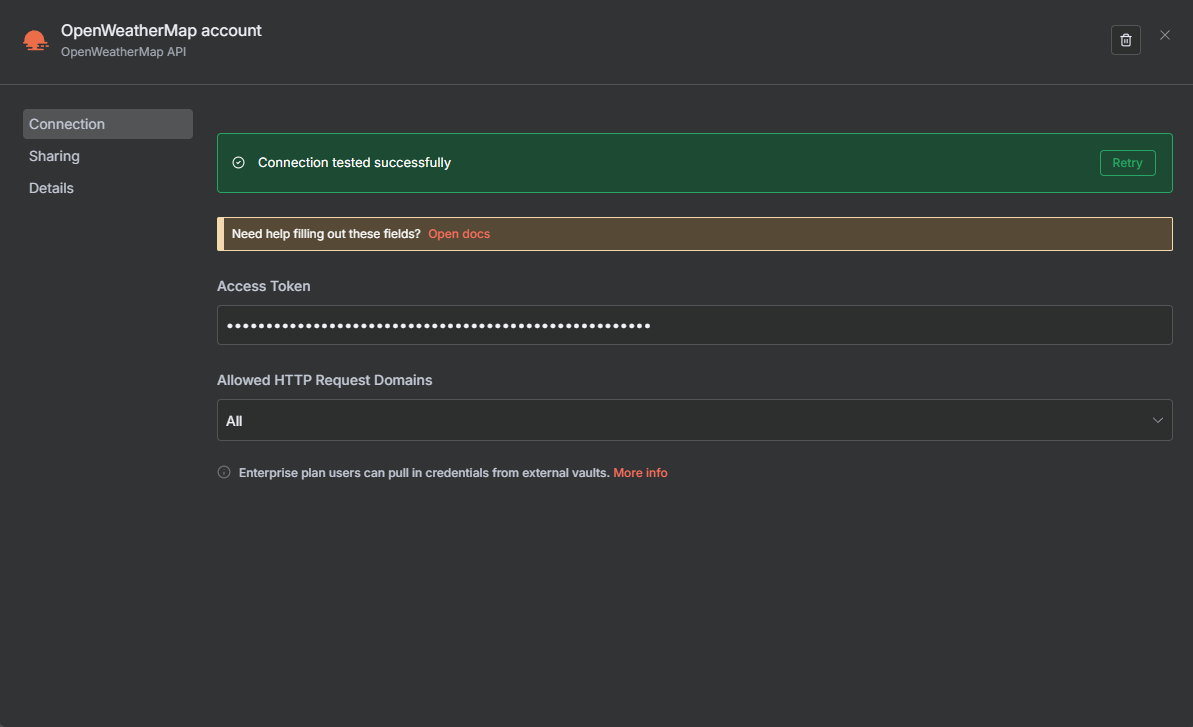
- In n8n, add an "OpenWeatherMap" node and connect it to the trigger node.
- add the API as an access token
- Then fill in the information about you location as shown in the picture
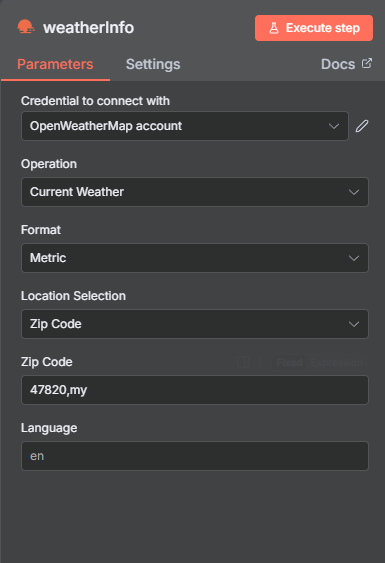
- The node will return JSON data - temperature, humidity, and conditions like “clear sky” or “light rain.”
Step 3 : Get an Inspiring Quote
- We’ll use a free quote API.
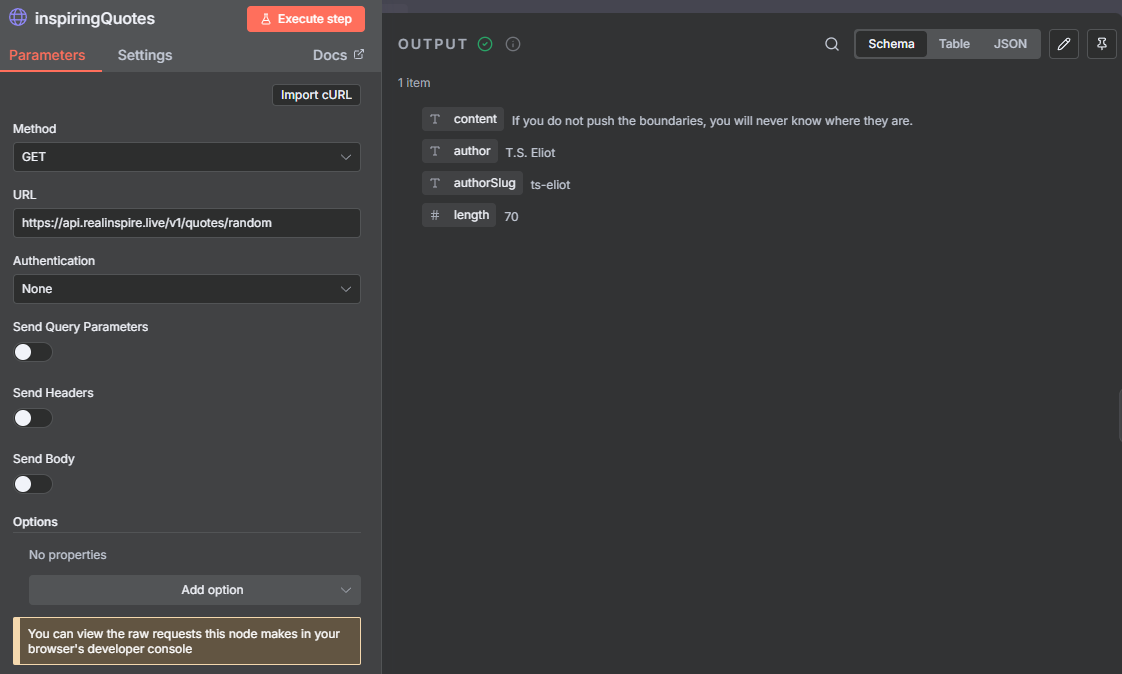
- Add "HTTP Request" node and connect it after the weather node.
Use this endpoint:https://api.realinspire.live/v1/quotes/random - Set the Method to
GET - The node will return a JSON with the quote and the author
Step 4 : Create Your Telegram Bot
- Open Telegram and search for
@BotFather - Send the command
/newbotand follow the instructions. - BotFather will give you a Bot Token — save it.
- You’ll also need your chat ID, you can get it after we set up telegram account in n8n.
Step 5 : Send the Message via Telegram
- Search n8n node and find Telegram and choose "On Message"
- Click add new credential and paste your Token provided by the BotFather
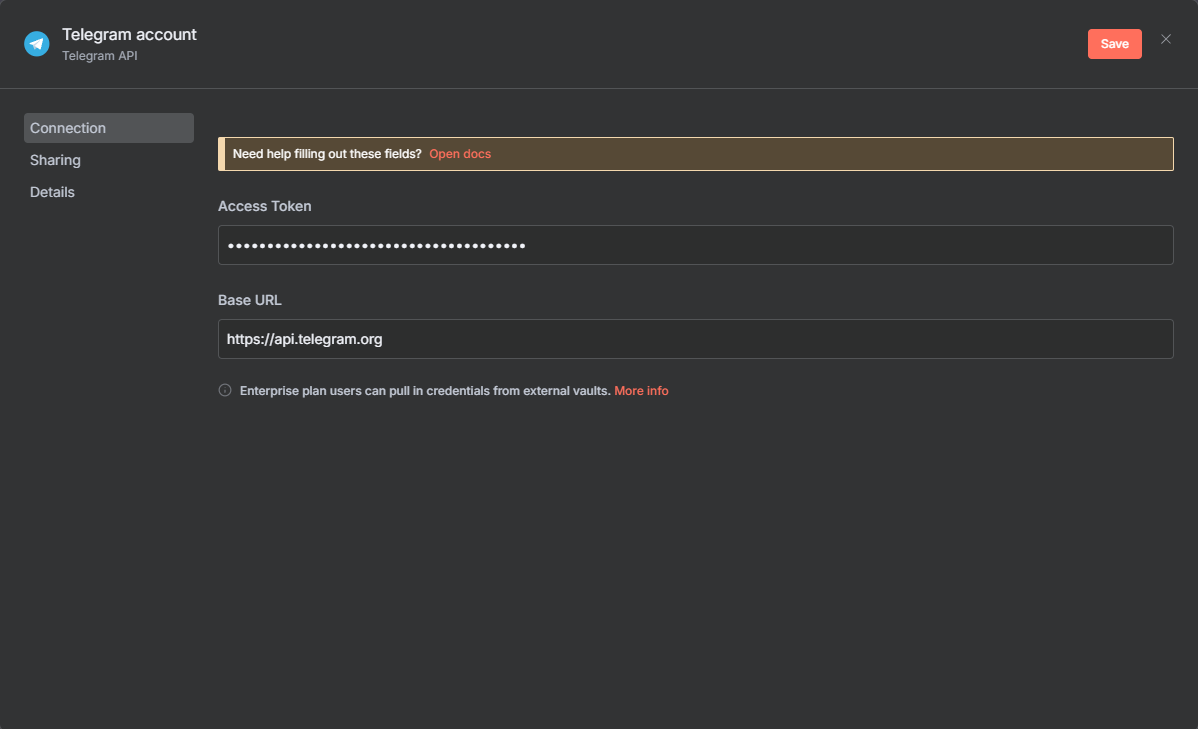
- Click save then click Execute step
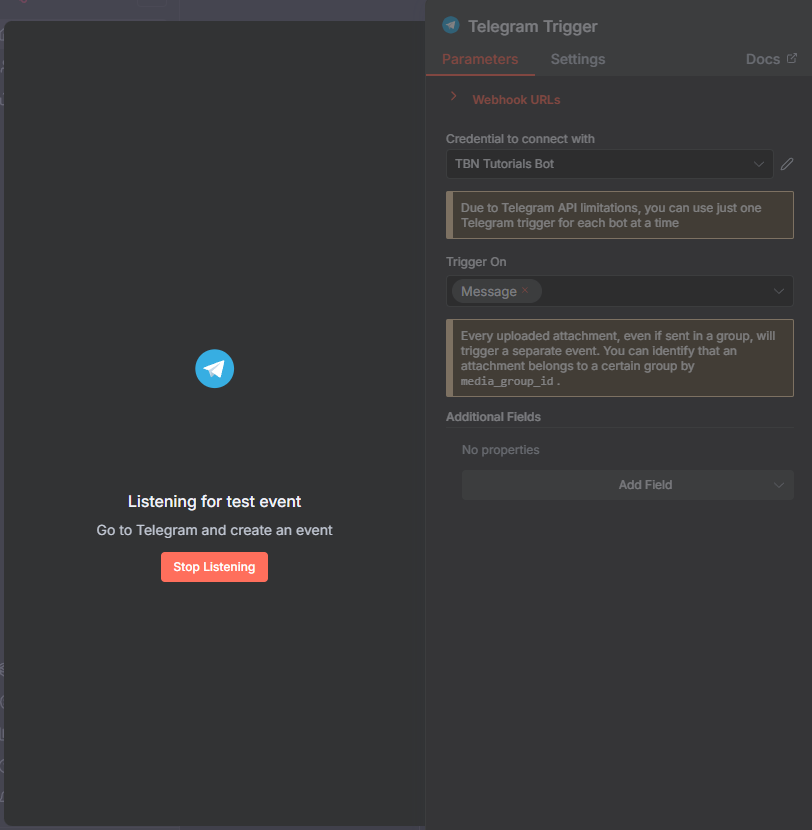
- Send a message to your bot and then you will get a JSON with your ID
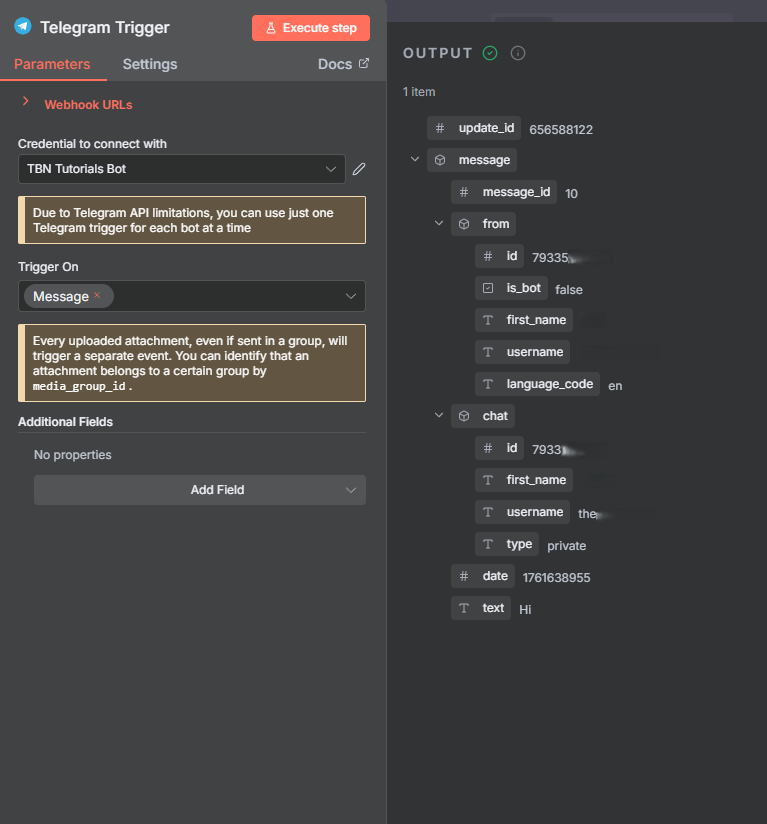
- Store your ID under chat and this will be you chat ID to send messages at any time.
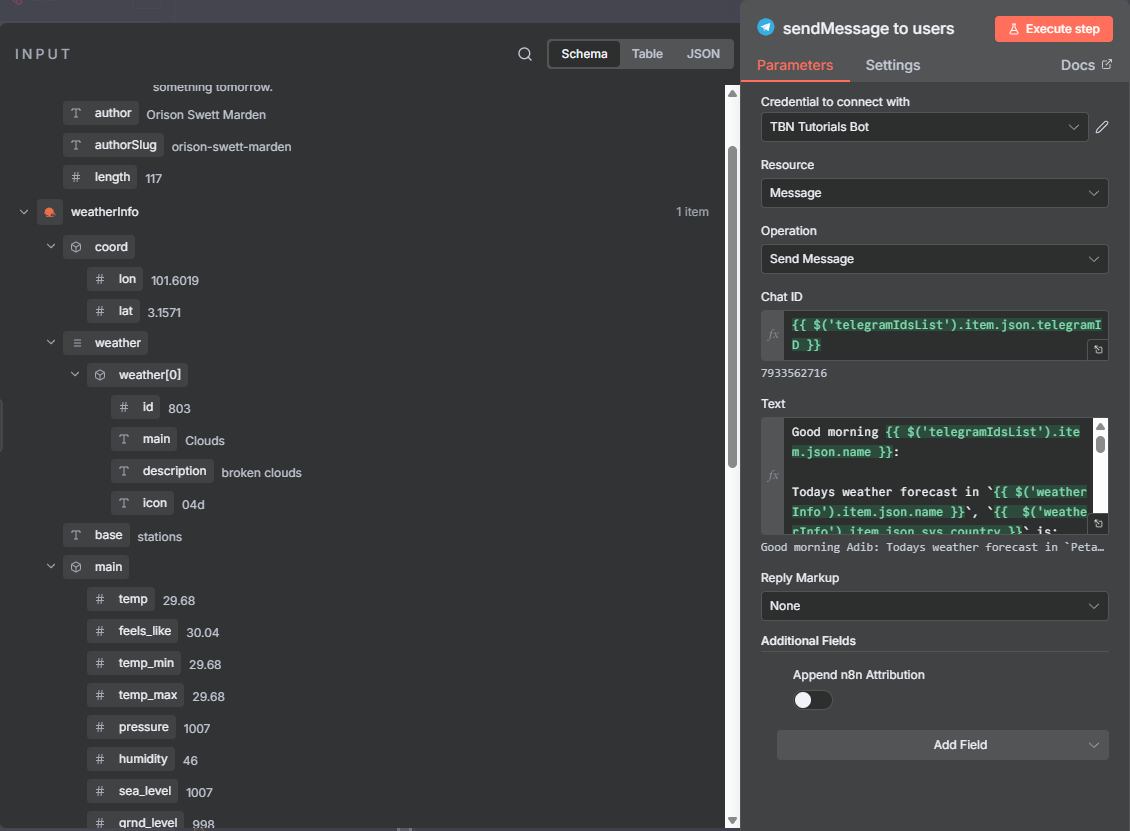
- Now delete this node and add "Send a text message" node after the http request
- Open the node and input your
chat IDand write the message text. - Drag and drop the information from the previous node and click execute to test it.
Wrapping Up
You’ve just built a complete end-to-end automation, from fetching real-time weather data to delivering a motivational quote directly to your Telegram every morning.
This project might seem simple, but it actually covers some of the most important fundamentals of automation: connecting APIs, scheduling tasks, and customizing messages dynamically.
The beauty of n8n is that once you understand these basics, you can expand endlessly; connect more services, personalize the messages, or even send the data to Google Sheets or your CRM.
If this is your first workflow, congratulations 🎉
you’ve officially started your journey into the world of automation.
In the next episode, we’ll take it a step further and explore how to connect n8n with other business tools to automate real daily tasks.
Until then, try experimenting with your new flow, tweak it, add new data sources, and make it truly yours.
If you’d like to see it all in action, watch the full tutorial on my YouTube Channel.
✉️ Need Help or Want to Collaborate?
If you need help setting this up or have any inquiries,
please contact me through the
contact form on my website.
If you’re looking to collaborate on projects involving Automation, AI, or Java programming, feel free to reach out via the consultation form: